Use alby Outbound Messages to directly engage your customers in their shopping journey, instead of waiting for them to initiate a conversation.
Outbound messages can help with relevant prompts, questions, or nudges that guide customers toward conversion. These messages are particularly valuable for brands that have already deployed the alby Chat experience and are looking to drive more interactions with their AI agent.
No additional technical implementation is required for Outbound Messages. It leverages your existing alby JavaScript integration.
How Outbound Messages work
Outbound messages can be used to show off new releases, advertise sales, or guide customers toward a specific product. When customers click the message, it will open their alby chat instance, either sending a message to an LLM or responding with a predetermined message.
Your customers will see Outbound Messages according to the targeting rules and schedule you’ve set up. Targeting rules dictate what kind of customers see the message, such as a new visitor to your site. Schedule messages to only show them to customers during the times when specific sales are live.
Create an Outbound Message
To create an Outbound Message:
Navigate to the Outbound Messages section in your alby admin dashboard, then click + New Outbound Message, where you’ll set up the settings for your new message.
Targeting rules
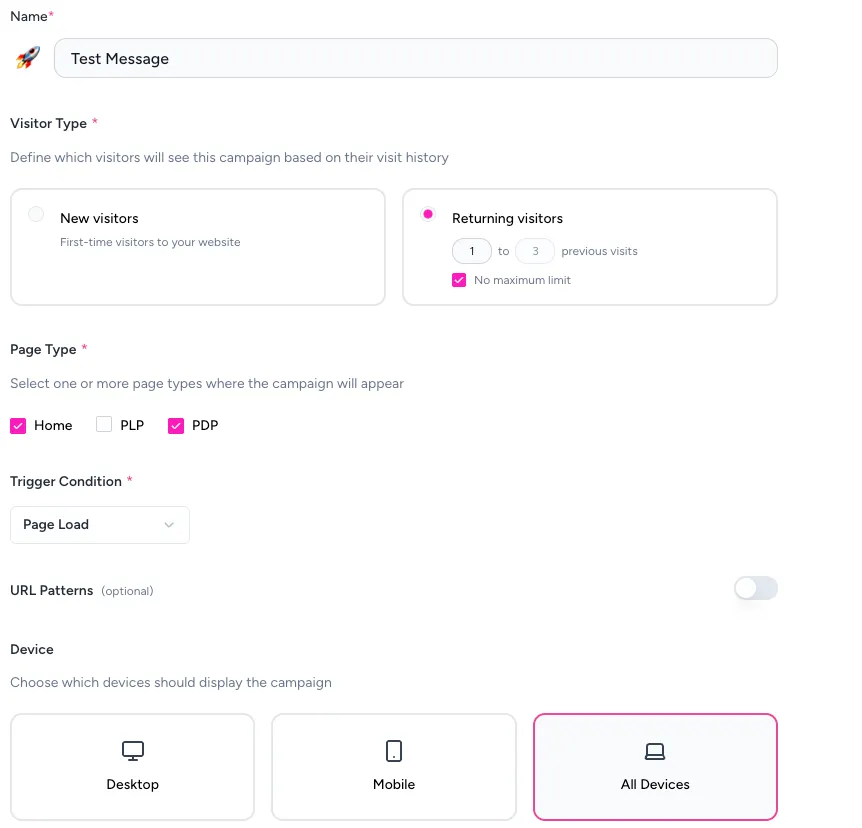
Configure targeting rules for your message:
Visitor Type: Target new visitors (zero visits) or returning visitors (one+ visits)
Page Targeting: Specify which pages should display the message (Homepage, PLP, PDP)
Trigger Condition: Denote at what point the messaging campaign will fire for customers
URL Patterns: Add further targeting rules using URL parameters
Device Targeting: Choose desktop, mobile, or both
Scheduling
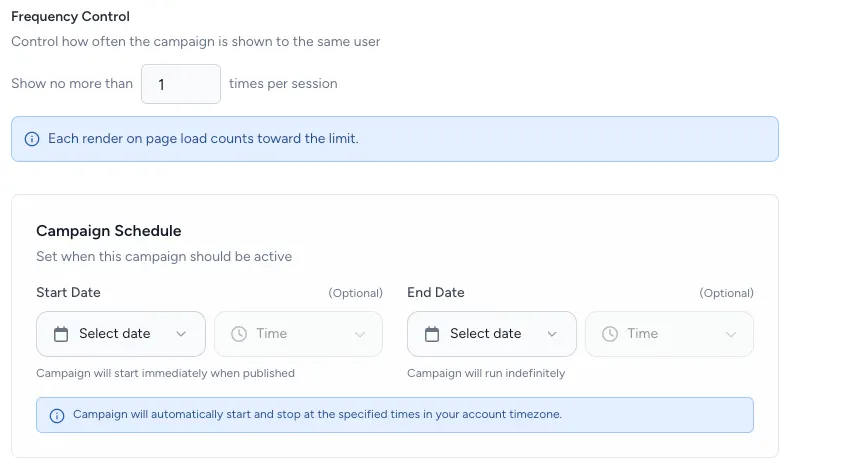
Use scheduling controls to determine when the campaign will be shown to customers.
Frequency Control: Adjust how many times the campaign can be shown to a single user in one session.
Campaign Schedule: Set a timeframe for when customers will see the message
Message & Notification
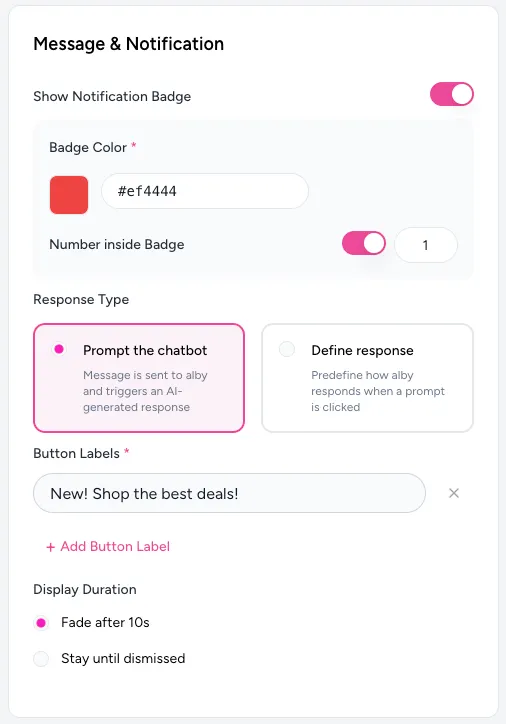
Here, you’ll set up what the actual message reads to your customers. You can also adjust styling such as the color and number inside the badge.
Response Type: Choose how alby responds when a customer clicks a button:
Prompt the chatbot
Define response
If you want alby to respond exactly what you want to a customer, choose Define response and type your message exactly. Prompt the chatbot will send a prompt to the alby LLM to generate a new response.
Button Labels: These are what the customer can click on to prompt alby for more information.
When finished, either save the message as a draft, or click Publish to set it live. If you publish the Outbound Message within the selected schedule, it'll show immediately to customers.
Best practices
Follow these guidelines for the best results when setting up an Outbound Message:
Keep your button label at a sentence or less.
Match button label content to the page context.
Schedule messages for seasonal promotions or limited-time offers.
Differentiate experiences for new vs. returning visitors as needed.